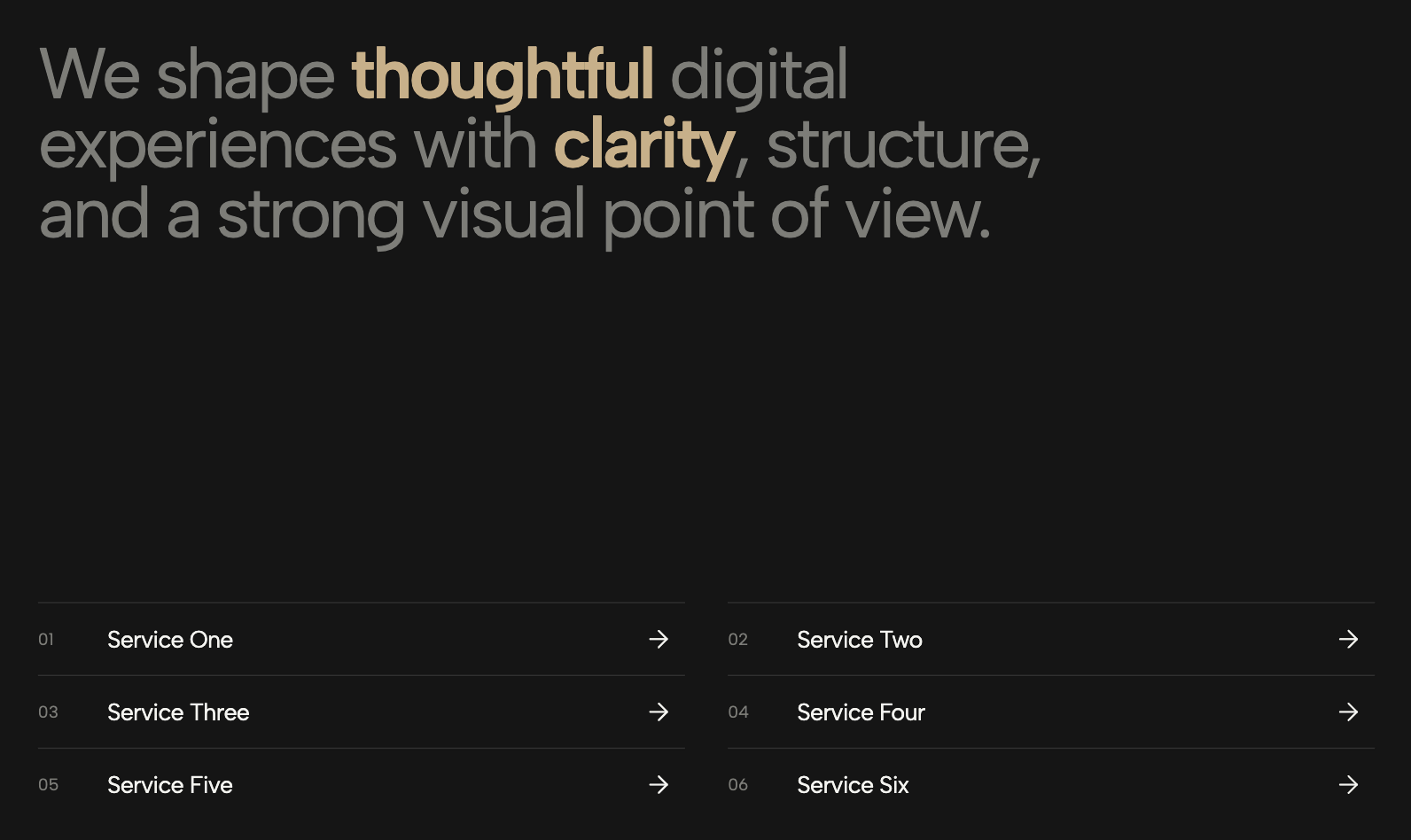
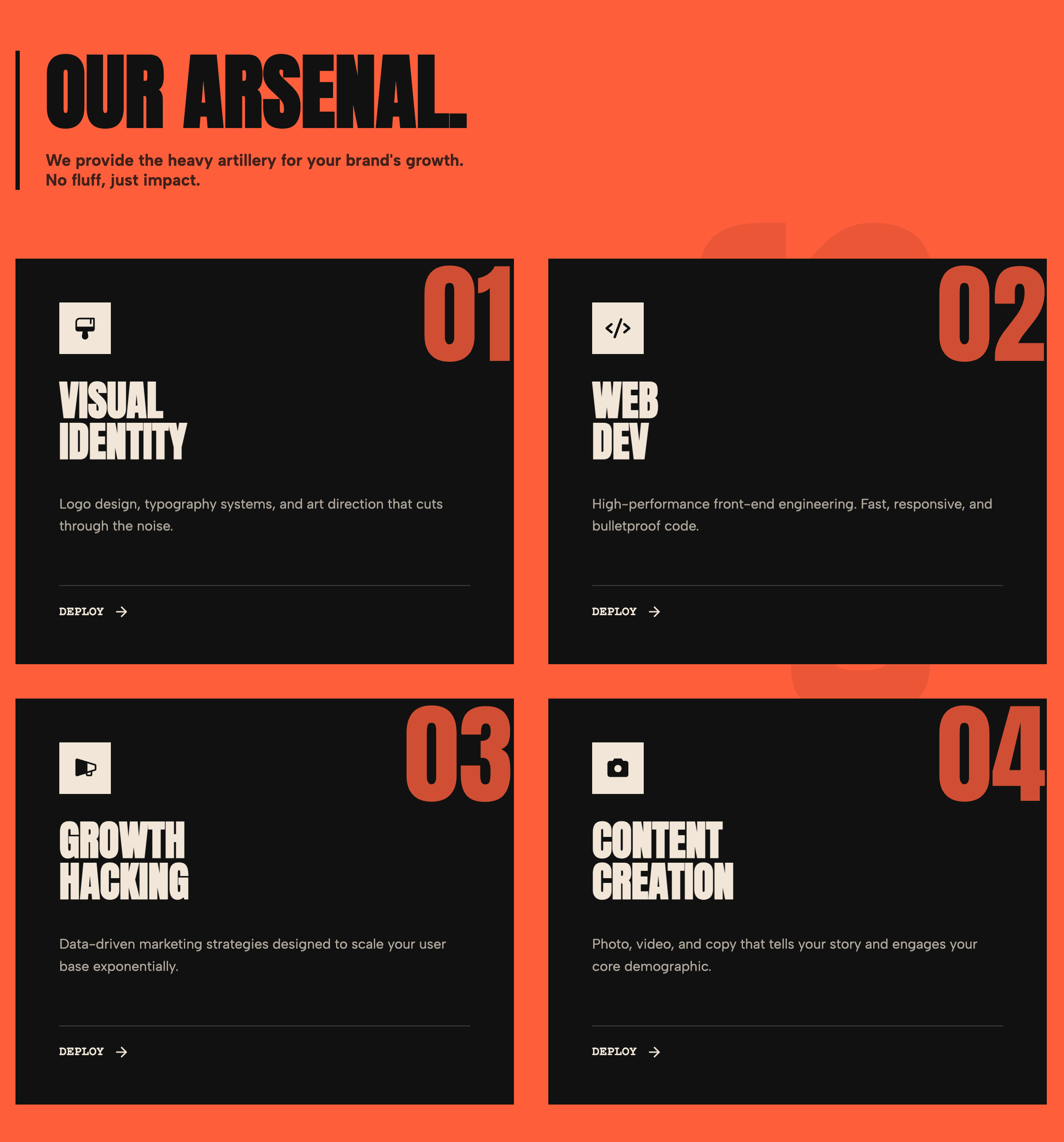
Transform your website with this sleek, professional Platform Index Navigation widget - a contemporary design solution perfect for showcasing services, features, product roadmaps, and process workflows. This modern SaaS-style section brings a clean, organized visual hierarchy to your content presentation.
Design Features:
This widget features a striking two-column grid layout with bold, oversized numbers paired with elegant pill-shaped buttons connected by minimalist horizontal lines. The design aesthetic is inspired by modern pitch decks and SaaS landing pages, utilizing a vibrant blue background (fully customizable) with high-contrast white text and borders. Large typography for section numbering (01, 02, 03, etc.) creates strong visual anchors, while the rounded button style adds a soft, approachable feel. The connecting lines between numbers and buttons create a sophisticated flow that guides visitors through your content hierarchy.
Perfect Use Cases:
Responsive & Customizable:
Fully responsive design adapts seamlessly from desktop to tablet to mobile devices. The two-column layout automatically transforms to a single-column stack on smaller screens while maintaining visual consistency. Every element is editable through an intuitive customizer - modify colors, fonts, button text, links, and add or remove service items dynamically. Built with modern CSS Grid and JavaScript for reliable cross-browser compatibility.
SEO-Optimized Structure:
Clean semantic HTML markup supports search engine optimization with proper heading hierarchy and descriptive link text. The widget's organized structure helps search engines understand your content architecture, improving indexability for service pages, feature lists, and product categories. Lightweight code ensures fast page load speeds - a critical ranking factor for modern SEO.
Key Benefits:
Professional design that builds trust and credibility, intuitive navigation that improves user experience, flexible customization for brand consistency, mobile-first responsive layout, easy content management without coding knowledge, and scalable structure that grows with your business needs.
Ideal for modern web design projects requiring a clean, organized presentation of multiple services, features, or process steps with contemporary visual appeal.
Bring this layout to life on your website in just a few clicks.

Edit Modern SaaS-Style Service Section visually using the native Squarespace extension
First, ensure you have connected your website to the native Redesignee extension. Once connected, you have two easy ways to build:
Native Block: Simply add the native Redesignee Widget Block directly from the fluid engine editor menu inside Squarespace.
Manual Markdown: Add a standard Markdown Block, paste your widget’s code snippet, and the Redesignee floating "Customize" button will automatically appear right over the block.
Both methods let you tweak settings, copy items, and design visually in real time. Saving your changes syncs the updates instantly to your live page.
See Squarespace installation guide
Connect natively via Gutenberg or Elementor
Make sure you have the free Redesignee WordPress Plugin installed. To drop the Modern SaaS-Style Service Section into Elementor, simply drag and drop the Redesignee widget from your sidebar. If you are using the Gutenberg Block Editor, click the " + " icon and select the Redesignee Block. Launch the Cloud Library directly inside your workspace, choose your customized template, and import it with a single click. It automatically inherits your theme fonts and styles!
WordPress plugin installation guide
Quick copy-and-paste for custom setups
If you are using Webflow, Shopify, Wix, or a custom HTML site, click the "Export Widget" button on this page and ensure the platform selector is set to "HTML". Click "Copy" to copy the clean, un-nested source code snippet directly to your clipboard. Paste this code into any HTML component, Code Block, or Embed tool inside your website builder. All styles, animations, and scripts are self-contained and ready to run.
This Modern SaaS-Style Service Section widget is optimized and categorized inside the following layout packs:
Convert your product traffic effortlessly. Tweak tech-focused feature sections and pricing tables in our cloud library, grab the optimized code, and paste them directly into your layout.
Elevate your business site layouts instantly. Browse free and premium corporate modules from our cloud library, adjust elements visually, and copy-paste clean layouts straight to your page engine canvas.
Embrace pristine minimal structures. Tweak crisp whitespace templates visually inside our cloud canvas layout, copy the fast-rendering script output, and paste it straight onto your host site.
Deploy sleek, night-mode interfaces effortlessly. Browse dark-mode cards, dashboards, and deep contrast hero layouts from our cloud library, customize styles visually, and copy-paste clean code.
Published:
Jan 28, 2026 04:36 AM
Category: