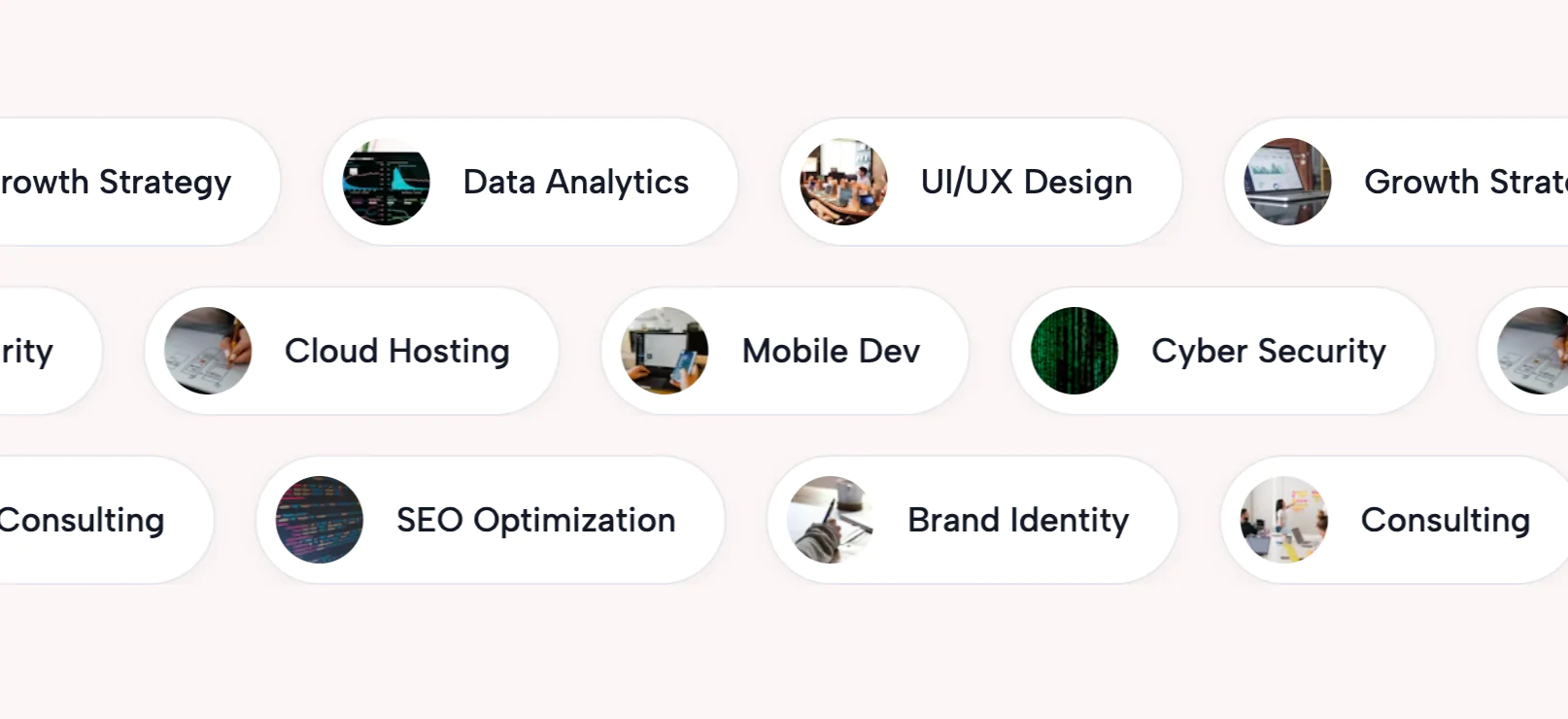
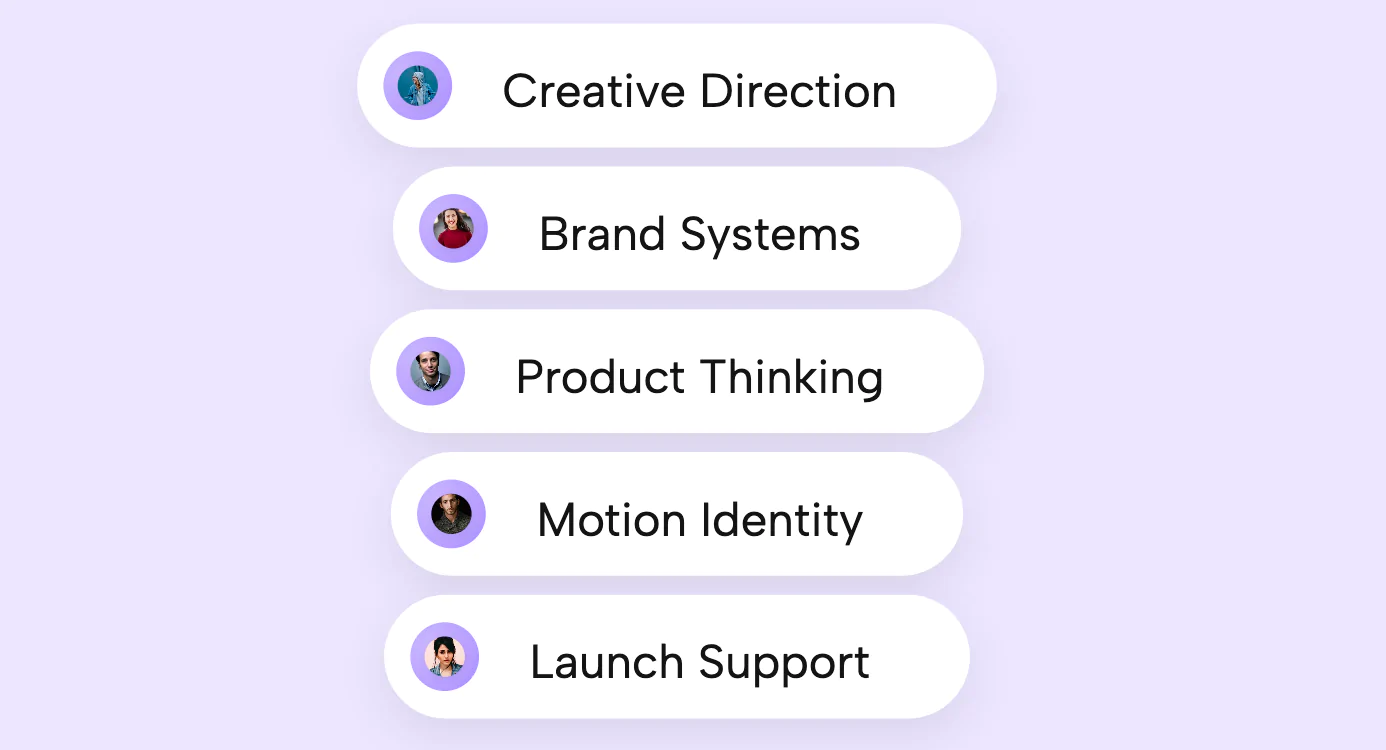
The Fitness Goals Dashboard is a vibrant, modern widget that presents user statistics, achievements, or key metrics in an eye-catching, gamified format. Inspired by contemporary fitness and wellness app designs, this widget uses bold, colorful pill-shaped cards arranged in a vertical stack to display different metrics or goals. Each card features a unique, vivid gradient background color that helps categorize information at a glance while creating visual interest and energy. The left side of each card displays a circular profile image or icon, while the right side prominently shows the metric value and label in large, readable typography.
The widget includes a strong headline and supporting subtitle on the left side of the layout, providing context for the dashboard metrics. Each card is designed with sophisticated hover animations that include subtle lift effects, enhanced shadows, and smooth scaling transitions. The cards appear to float above the background with carefully crafted depth through multiple shadow layers. The entire widget uses a dark background to make the colorful cards pop dramatically, creating high contrast that draws attention and improves readability. Cards animate in sequentially with staggered timing as they enter the viewport, creating a cascading reveal effect that feels dynamic and engaging. This widget is perfect for displaying user achievements, fitness statistics, progress tracking, team member highlights, service offerings, or any data that benefits from visual categorization through color. The design incorporates Awwwards-level polish with attention to micro-interactions, sophisticated easing curves, and thoughtful visual hierarchy.
Bring this layout to life on your website in just a few clicks.

Edit Fitness Goals Dashboard visually using the native Squarespace extension
First, ensure you have connected your website to the native Redesignee extension. Once connected, you have two easy ways to build:
Native Block: Simply add the native Redesignee Widget Block directly from the fluid engine editor menu inside Squarespace.
Manual Markdown: Add a standard Markdown Block, paste your widget’s code snippet, and the Redesignee floating "Customize" button will automatically appear right over the block.
Both methods let you tweak settings, copy items, and design visually in real time. Saving your changes syncs the updates instantly to your live page.
See Squarespace installation guide
Connect natively via Gutenberg or Elementor
Make sure you have the free Redesignee WordPress Plugin installed. To drop the Fitness Goals Dashboard into Elementor, simply drag and drop the Redesignee widget from your sidebar. If you are using the Gutenberg Block Editor, click the " + " icon and select the Redesignee Block. Launch the Cloud Library directly inside your workspace, choose your customized template, and import it with a single click. It automatically inherits your theme fonts and styles!
WordPress plugin installation guide
Quick copy-and-paste for custom setups
If you are using Webflow, Shopify, Wix, or a custom HTML site, click the "Export Widget" button on this page and ensure the platform selector is set to "HTML". Click "Copy" to copy the clean, un-nested source code snippet directly to your clipboard. Paste this code into any HTML component, Code Block, or Embed tool inside your website builder. All styles, animations, and scripts are self-contained and ready to run.
This Fitness Goals Dashboard widget is optimized and categorized inside the following layout packs:
Scale your studio production in record time. Access professional agency sections from our cloud workspace, tweak them visually, and drop clean, native elements straight into your client builds.
Convert your product traffic effortlessly. Tweak tech-focused feature sections and pricing tables in our cloud library, grab the optimized code, and paste them directly into your layout.
Deploy sleek, night-mode interfaces effortlessly. Browse dark-mode cards, dashboards, and deep contrast hero layouts from our cloud library, customize styles visually, and copy-paste clean code.
Make your layouts stand out instantly. Tweak advanced visual elements inside our cloud design workspace, copy the lightweight framework strings, and drop them seamlessly onto your canvas.