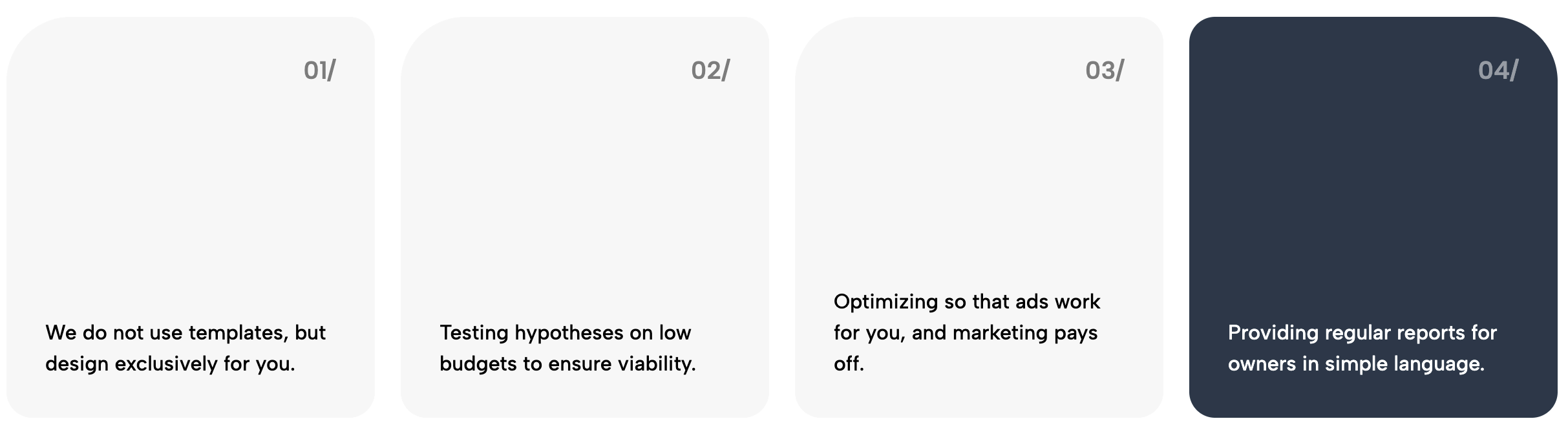
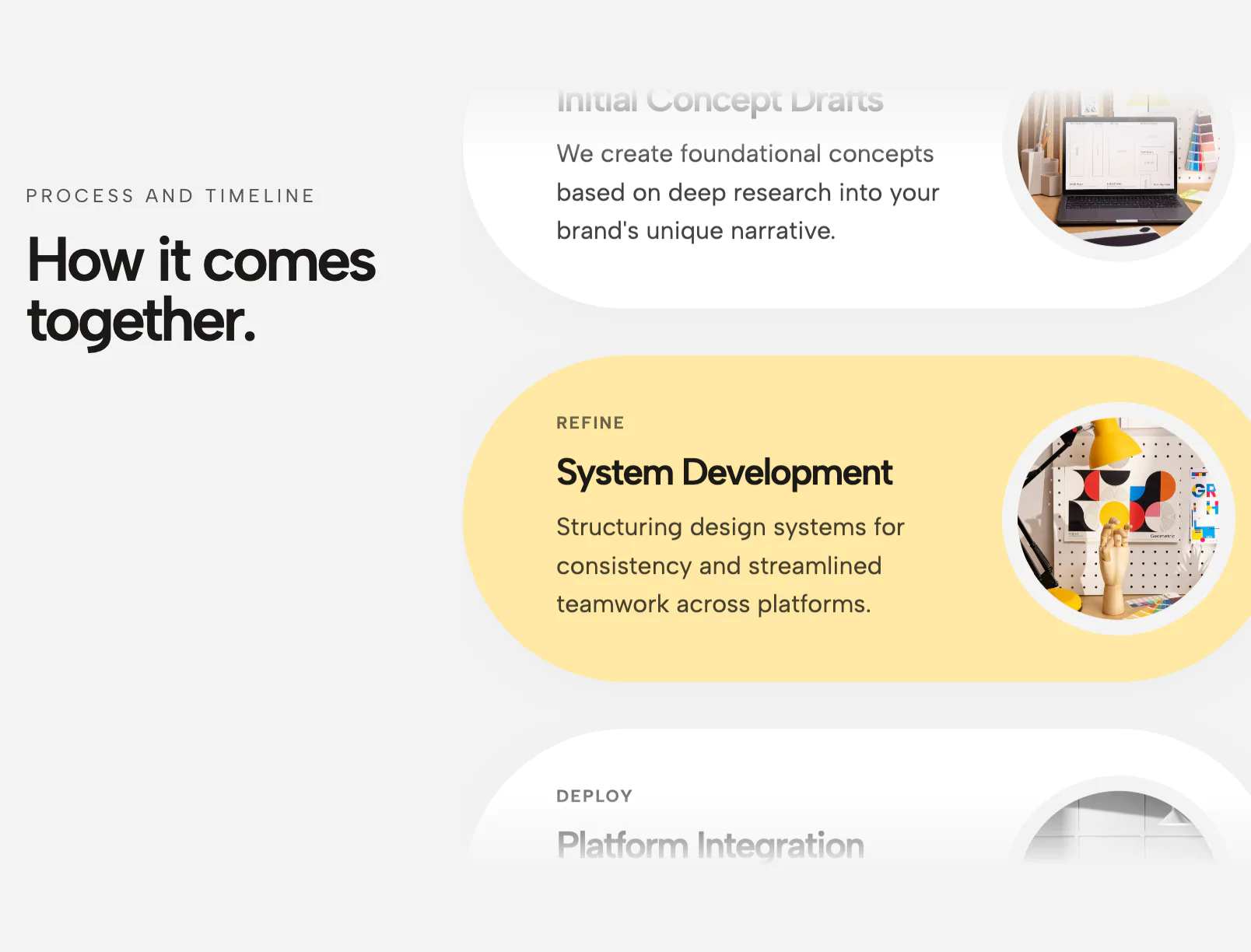
Transform your service offerings, core values, or operational workflows into a visually structured Numbered Feature Grid. This widget is designed to break down complex information into digestible, card-based steps, making it perfect for "How It Works" sections or detailed service menus.
The defining feature of this widget is its independent background control. You can set a unique background color for each card individually, allowing for stylish alternating patterns (e.g., Dark/Light/Dark) or color-coded categories. Each card features a prominent, high-impact number to establish order, followed by a headline and a rich-text area perfect for bulleted lists.
Built with flexibility in mind, this widget supports dynamic content management. You can add, remove, or reorder cards using the slide interface, and the CSS grid automatically adjusts from a four-column layout on desktops to a stacked single-column layout on mobile devices. Every text element offers full typography control, letting you adjust font families, sizes, and colors to match your brand identity perfectly.
Bring this layout to life on your website in just a few clicks.

Edit Numbered Feature Cards & Process Grid visually using the native Squarespace extension
First, ensure you have connected your website to the native Redesignee extension. Once connected, you have two easy ways to build:
Native Block: Simply add the native Redesignee Widget Block directly from the fluid engine editor menu inside Squarespace.
Manual Markdown: Add a standard Markdown Block, paste your widget’s code snippet, and the Redesignee floating "Customize" button will automatically appear right over the block.
Both methods let you tweak settings, copy items, and design visually in real time. Saving your changes syncs the updates instantly to your live page.
See Squarespace installation guide
Connect natively via Gutenberg or Elementor
Make sure you have the free Redesignee WordPress Plugin installed. To drop the Numbered Feature Cards & Process Grid into Elementor, simply drag and drop the Redesignee widget from your sidebar. If you are using the Gutenberg Block Editor, click the " + " icon and select the Redesignee Block. Launch the Cloud Library directly inside your workspace, choose your customized template, and import it with a single click. It automatically inherits your theme fonts and styles!
WordPress plugin installation guide
Quick copy-and-paste for custom setups
If you are using Webflow, Shopify, Wix, or a custom HTML site, click the "Export Widget" button on this page and ensure the platform selector is set to "HTML". Click "Copy" to copy the clean, un-nested source code snippet directly to your clipboard. Paste this code into any HTML component, Code Block, or Embed tool inside your website builder. All styles, animations, and scripts are self-contained and ready to run.
This Numbered Feature Cards & Process Grid widget is optimized and categorized inside the following layout packs:
Convert your product traffic effortlessly. Tweak tech-focused feature sections and pricing tables in our cloud library, grab the optimized code, and paste them directly into your layout.
Elevate your business site layouts instantly. Browse free and premium corporate modules from our cloud library, adjust elements visually, and copy-paste clean layouts straight to your page engine canvas.
Published:
Jan 11, 2026 09:03 AM
Category: