
Dynamic scroll animations can transform a static webpage into an engaging experience. As visitors scroll, text, images, and buttons smoothly reveal themselves into view. When executed well, these effects highlight your key messages, guide the user's attention, and give your WordPress site a polished, modern look.
But restraint is key. Excessive movement can overwhelm your visitors or distract from your core content. Your animations should enhance the reading experience, not fight for attention.
If you want to elevate your site's design without touching custom CSS or hiring a developer, the quickest way is to paste one snippet into your WordPress header. Here's how.
WordPress and Elementor's built-in animation options
Before adding third-party tools, check what your current setup offers natively. Most premium WordPress themes and page builders like Elementor feature their own "entrance animations." In Elementor, for instance, you can usually find these in the Advanced tab of any widget under Motion Effects.
These built-in effects are convenient if you only want to animate a couple of specific elements. However, building a cohesive site-wide experience manually, block by block, is incredibly time-consuming. Additionally, many themes only offer basic fades or slides.
If you are looking for advanced page transitions, text cascades, or a way to apply site-wide animation rules in seconds rather than editing every single widget, a dedicated tool is the better route.
How to animate your WordPress site with the Redesignee Website Animator
The Redesignee Website Animator is a visual platform that allows you to assign unique scroll effects to different HTML elements across your entire site without writing code. It generates a lightweight script for you to install.
Here is the process:
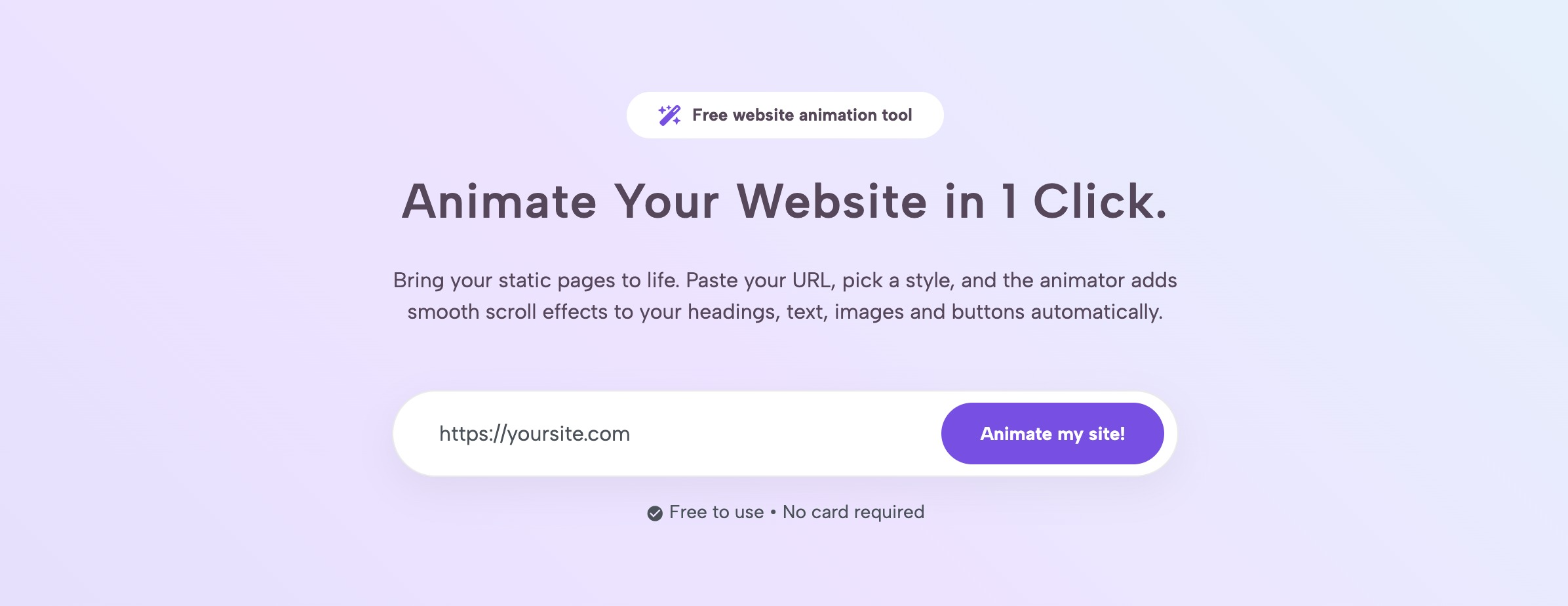
- Load your site into the animator: Navigate to the animator page, type in your website's URL, and hit Animate my site!. A free account is required, so if you are logged out, you will be prompted to log in before continuing.
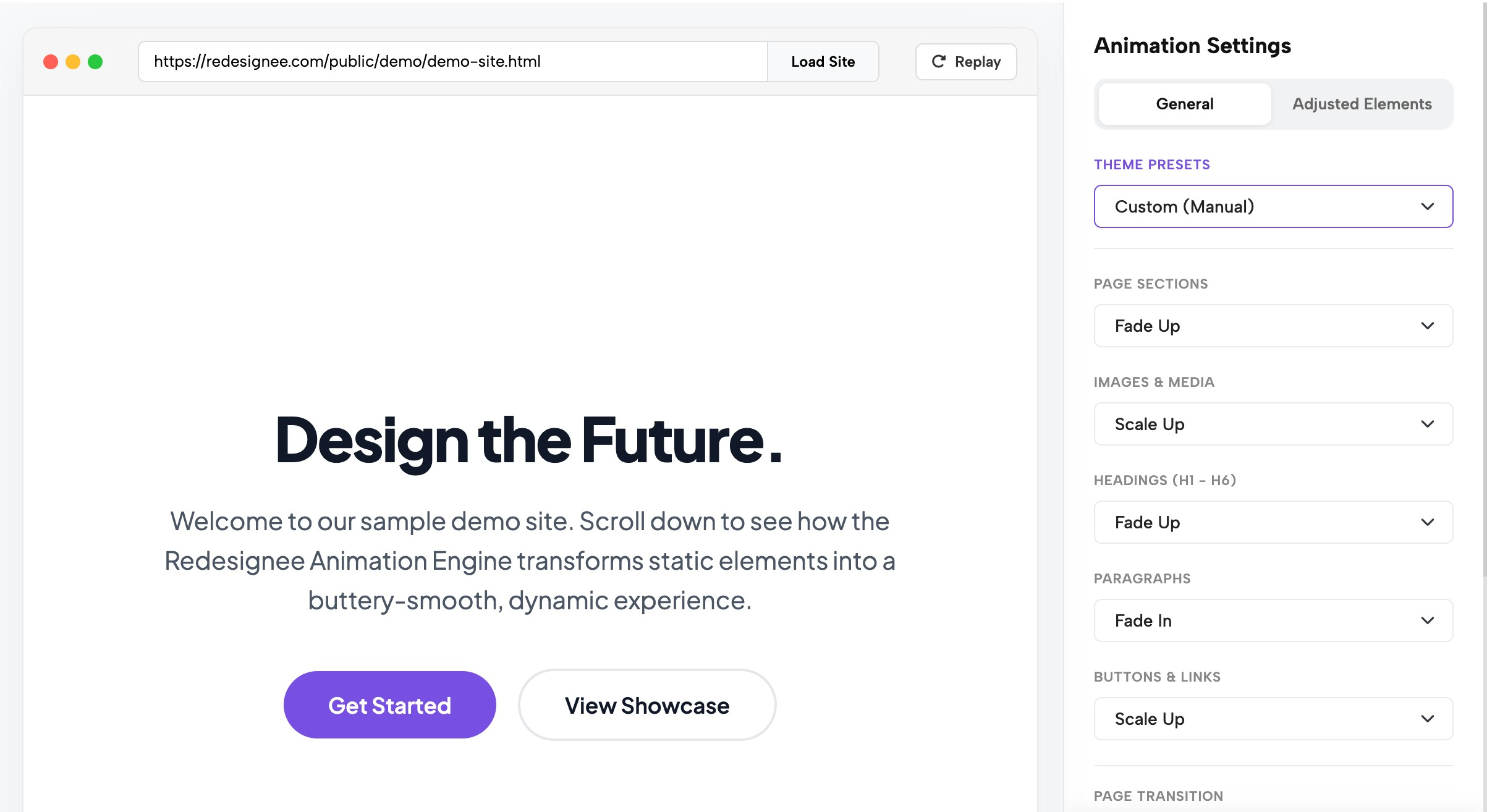
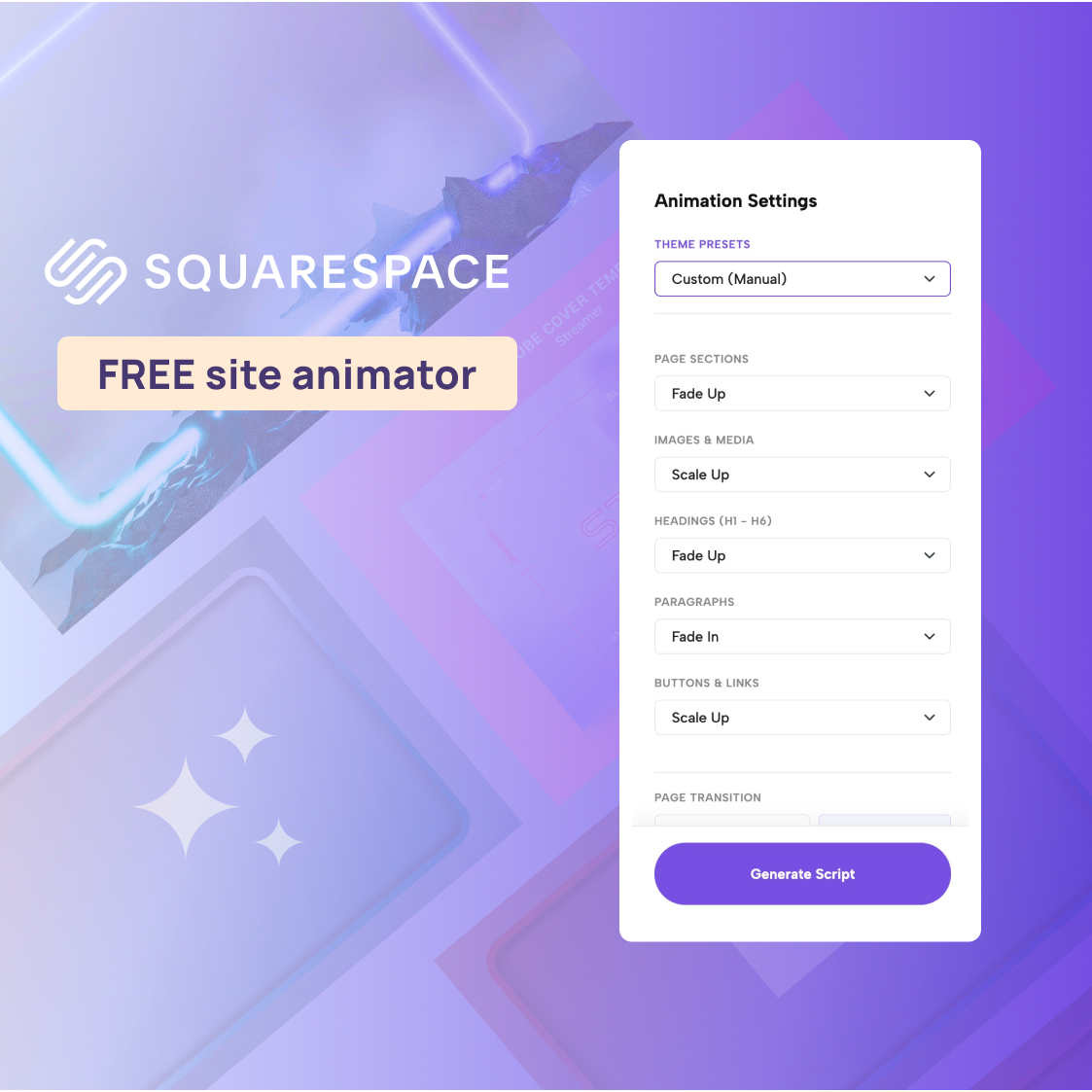
- Choose your general settings: A live preview of your site will appear. Use the Animation Settings panel on the right to select a Theme Preset (such as Minimal & Clean, Dynamic Bounce, Editorial, or Cinematic). Alternatively, you can manually set a specific effect for each element group (sections, images, headings, paragraphs, and buttons).
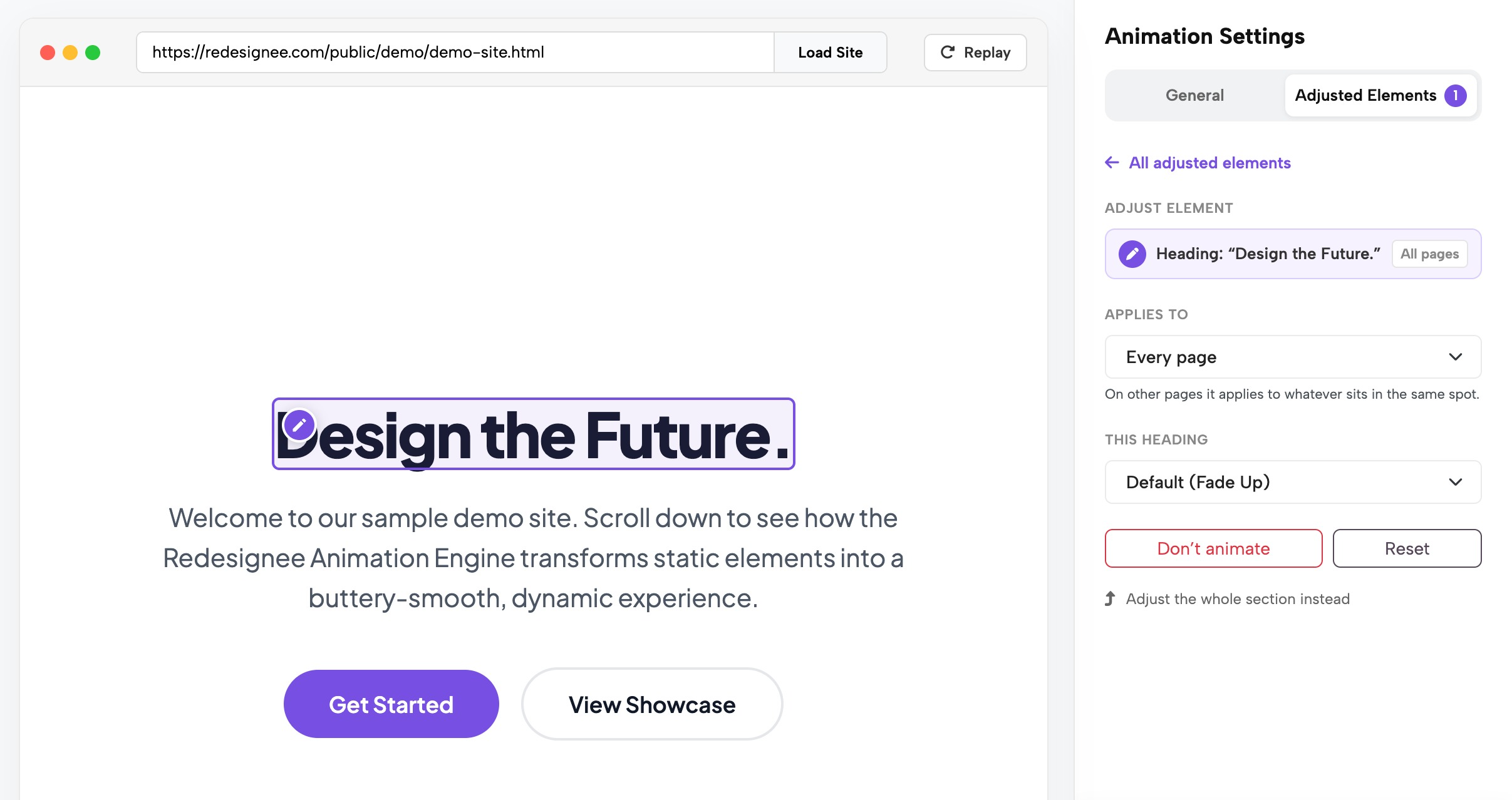
- Adjust single elements: Want a specific button or hero image to behave differently from the rest? Hover over it in the live preview and click the pencil icon. This allows you to give that specific element its own effect or turn its animation off entirely.
- Copy your script: Once your site looks perfect, click Generate Script. The tool will provide a custom code snippet for you to copy.
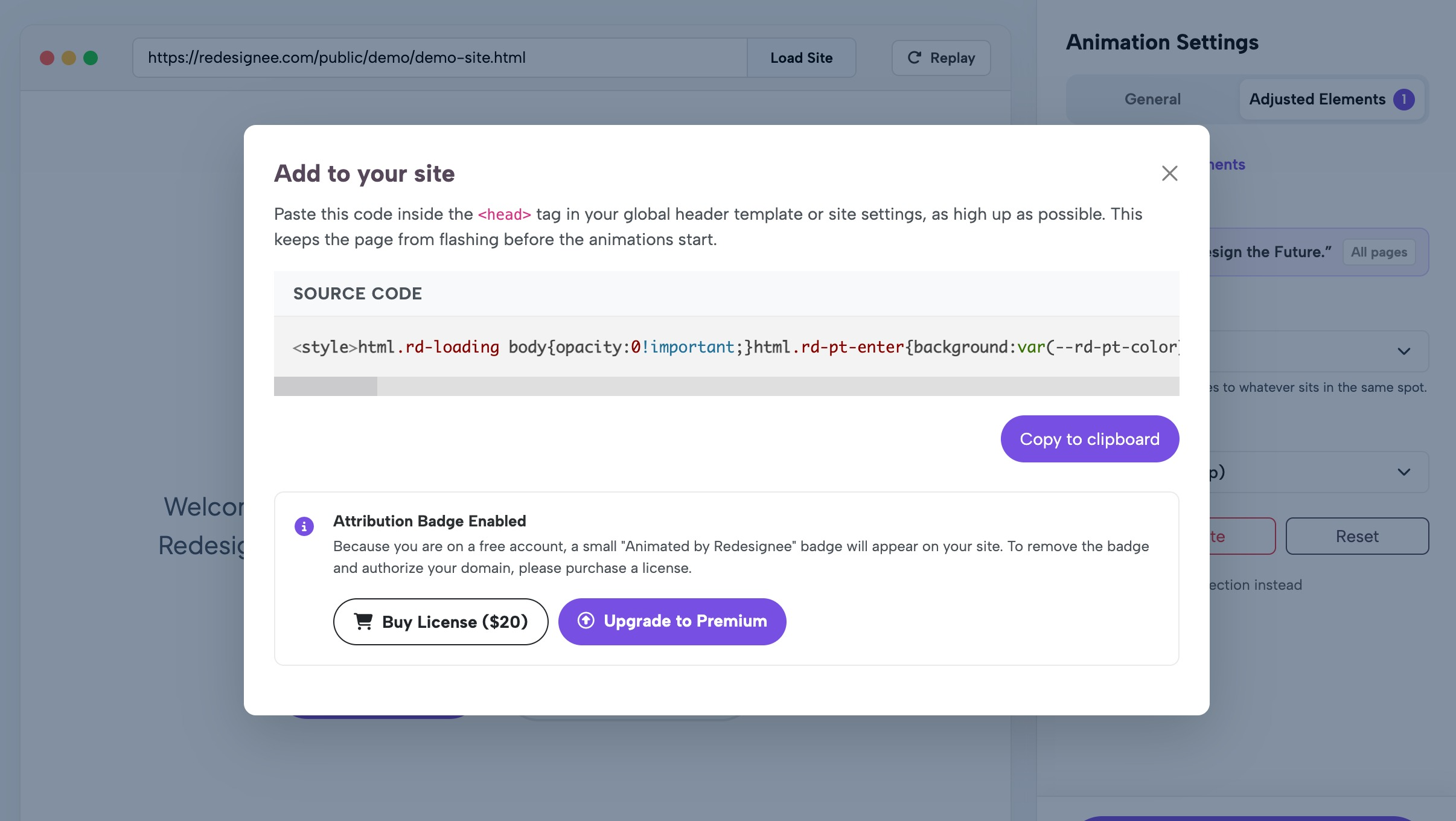
Your generated script will look similar to this example, customized with your specific settings:
<style>html.rd-loading body{opacity:0!important;}</style> <script>window.rdAnimConfig={"sections":"fade-up","images":"scale-up","headings":"fade-up","paragraphs":"fade-in","buttons":"scale-up","stagger":true,"replay":false,"transition":"none","smoothScroll":true}; /* … */</script> <script src="https://redesignee.com/api/animator/engine?u=YOUR_ID" defer></script>
Where to paste the code in WordPress
To make the animations work, you must add your generated script to the <head> of your WordPress site. This ensures the code loads before the visual content is rendered.
Option A: Using a header/footer plugin (Recommended)
- Install and activate a free plugin like WPCode.
- In your WordPress dashboard, navigate to WPCode → Header & Footer.
- Paste your snippet into the Header box.
- Click Save Changes, then clear any site caches.
Option B: Using Elementor Pro
- Go to Elementor → Custom Code → Add New.
- Paste the snippet into the code box.
- Set the Location to <head> and ensure the priority is high.
- Publish and set the display condition to Entire Site.
Gotchas to watch out for:
- Caching plugins: Optimization plugins like WP Rocket, Autoptimize, or LiteSpeed that "delay" or "combine" JavaScript can cause your content to flash before animating. You must exclude the animator snippet and redesignee.com/api/animator from these optimization settings.
- Double animations: If your WordPress theme or Elementor widgets already have entrance animations applied, they will conflict with the Redesignee script. Make sure to turn off those native animations to avoid elements animating twice.
For a detailed breakdown, check out the WordPress installation guide. If you are also looking for animated promo banners or popups, you can install the Redesignee WordPress plugin for widgets.
Which effects to choose
The right animation style depends on your website's aesthetic. You can test combinations using the Theme Presets, or set them individually. For a full breakdown of what each effect does, review the effects and settings documentation.
- For business and service websites: Stick to the basics. "Fade In" and "Fade Up" applied to text and images give a professional, polished feel without distracting the user.
- For creative portfolios and agencies: Push the boundaries. Try a "Wipe Reveal" on your images and a "Line Reveal" on your headings for a highly customized, award-winning agency look.
Don't forget the page-level options. You can enable Smooth Scrolling for a buttery, inertia-based scroll experience. Turning on Enable Staggering ensures elements that appear on screen at the same time will animate sequentially (80 ms apart) rather than all at once. You can also set a Page Transition (like Wipe or Fade) with a custom color that plays whenever a visitor navigates to a new page on your site.
Keep specific elements still
Sometimes you need certain elements to remain completely static—like your site logo, a navigation menu, or a functional form.
To exclude an element from your site-wide animations, use the animator's live preview. Hover over the item and click the pencil icon to open the Adjust Element panel. Set the effect to None. This tells the script to ignore it. If you make a mistake, simply hit Reset to revert it to the general settings.
Keep in mind: if an element is inside an animated section, it will still move with that section even if you set the individual element to None. To keep an entire area completely still, you must adjust the whole section instead. Read more about adjusting single elements here.
Performance, accessibility and SEO
You shouldn't have to sacrifice speed or SEO for a beautiful design. The Redesignee animator is built with best practices in mind.
- Performance: The animation engine is incredibly lightweight—roughly 8 KB compressed. It consists of one plain JavaScript file loaded with a defer attribute, ensuring it never blocks your page from loading. To prevent ugly content flashing, the script hides the page briefly while prepping the effects. Crucially, the page is always shown within 3 seconds, even if the user has a poor connection. Read more on performance here.
- Accessibility: The animator natively respects the prefers-reduced-motion setting on a visitor's device. Users who prefer less motion will only see quick, simple fades, while heavy animations like parallax, magnetic hover, smooth scrolling, and page transitions are automatically disabled for them. Learn more about accessibility here.
- SEO and Privacy: Because the animator targets HTML tags directly, your text and images remain in the page's HTML exactly as they were. Search engines and AI crawlers can read everything perfectly. There are no cookies, no trackers, and no visitor data collected.
Troubleshooting
If you run into issues after pasting your code, here are the most likely culprits. For more help, consult the troubleshooting guide.
- Nothing animates: Be sure to test your live, published site in an incognito window, as caching plugins or logged-in admin bars can sometimes interfere with how scripts load.
- Content flashes, then jumps: Your snippet is probably placed too low in the HTML (like in the footer). Make sure it is pasted in the <head> section, as high up as possible. Also, check your WordPress caching plugins to ensure the script isn't being delayed.
- Elements animate twice: Your WordPress theme or Elementor widgets likely have their own entrance animations turned on. You will need to disable them to prevent conflicts.
- The Redesignee badge is still showing after buying: Go to your Redesignee account settings and add your domain to the whitelisted domains list. Then, generate a new script in the animator and replace the old one on your site.
FAQ
How much does the animator cost?
The core animator is completely free and includes all settings, the live preview, and the generated script, with a small "Animated by Redesignee" badge displayed on your site. To remove the badge for one domain, a single-domain license costs a one-time fee of $20. We also offer Premium Starter ($49/year) and Premium Agency ($199/year) plans, which remove the badge and grant access to over 750 Redesignee widgets.
Will this slow down my WordPress site?
No. The animation engine is about 8 KB compressed and uses the defer attribute so it doesn't block your page load. Additionally, a built-in failsafe ensures your site content is always visible within 3 seconds, even on a terrible connection.
Does it work on mobile?
Yes. The animations are fully responsive. They trigger automatically when elements scroll into the viewport, working smoothly across desktop, tablet, and mobile browsers.
Can I remove it later?
Absolutely. The animator never permanently alters your WordPress database or theme files. To remove it, just delete the snippet from your header, and your site will instantly revert to its original state.
Does it work with Elementor's built-in animations?
No. If you leave Elementor's native motion effects turned on while the Redesignee script is active, your elements will try to animate twice. It is highly recommended to turn off native theme or page-builder animations before using the snippet.
Start animating your Wordpress site
Ready to bring your site to life? Try it free at redesignee.com/animator.

Comments (0)