
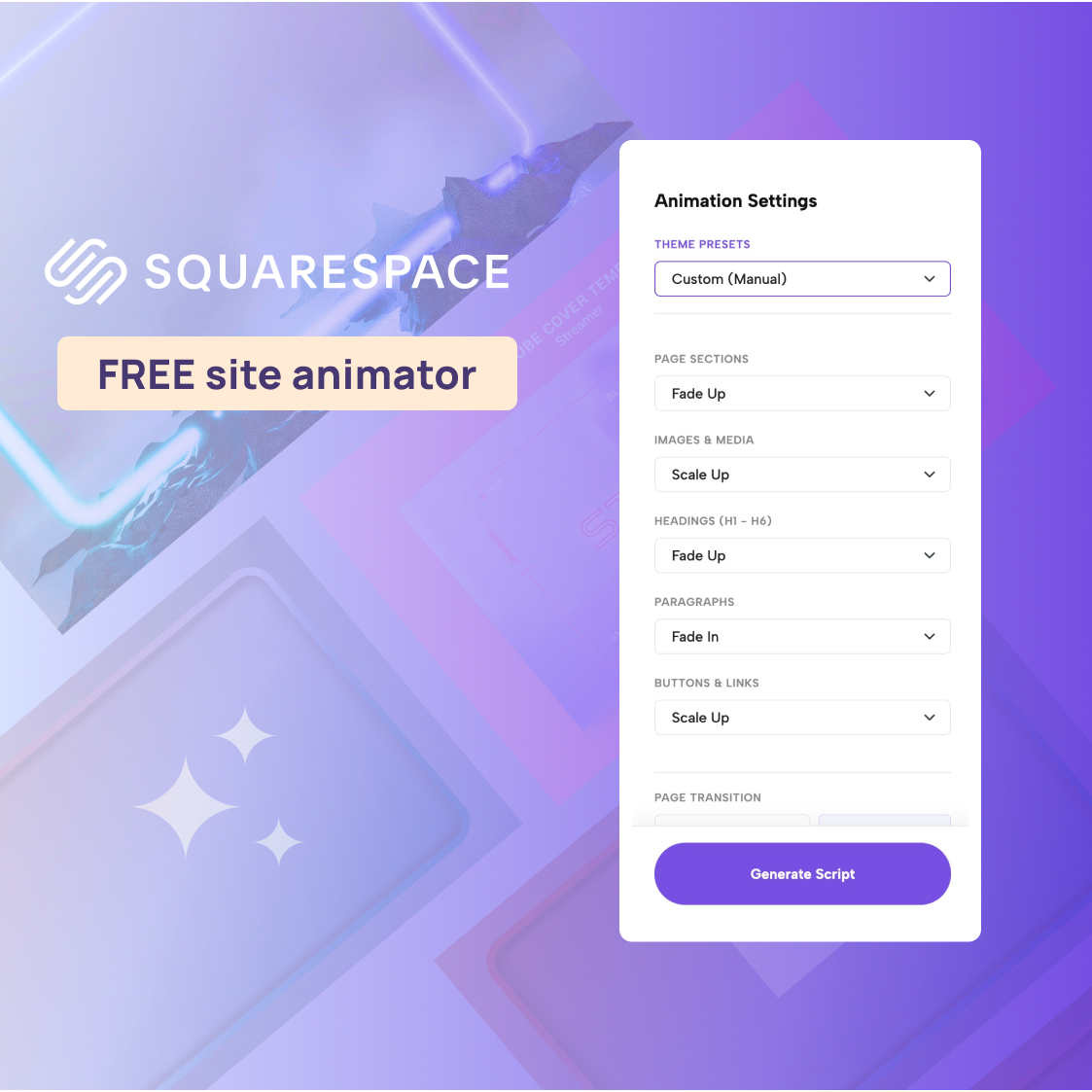
Scroll animations bring a webpage to life by revealing images, text, and buttons dynamically as visitors scroll down the page. When used thoughtfully, these effects guide attention, create a premium feel, and make your Squarespace website look instantly more modern.
However, it is easy to overdo it. Too much motion can distract from your actual content or frustrate visitors who just want to read your offerings. The goal is to support your content, not overshadow it.
If you are looking to upgrade your site's aesthetic without writing custom CSS or hiring a developer, the quickest way is to paste one snippet into your Squarespace header. Here's how.
Squarespace's built-in animation options
Before using an external tool, it is worth exploring what Squarespace can already do. Squarespace offers its own native site animations, which you can usually find in your Site Styles under Animations.
These native effects are incredibly easy to turn on and apply to your entire site instantly. However, they have honest limits. Squarespace natively applies one uniform animation style across your whole site. If you choose a "Fade" or "Slide" effect, everything fades or slides in the same way.
While this is great for a fast, simple setup, it lacks nuance. If you want a bold parallax scroll on your images, a cinematic word cascade on your main headings, and soft fades for your paragraphs, you will need a dedicated animation tool.
How to animate your Squarespace site with the Redesignee Website Animator
The Redesignee Website Animator is a visual tool that lets you add distinct, customized animations to different types of elements on your existing website, all without coding. It works by generating a small script that you paste into your site.
Here is how it works:
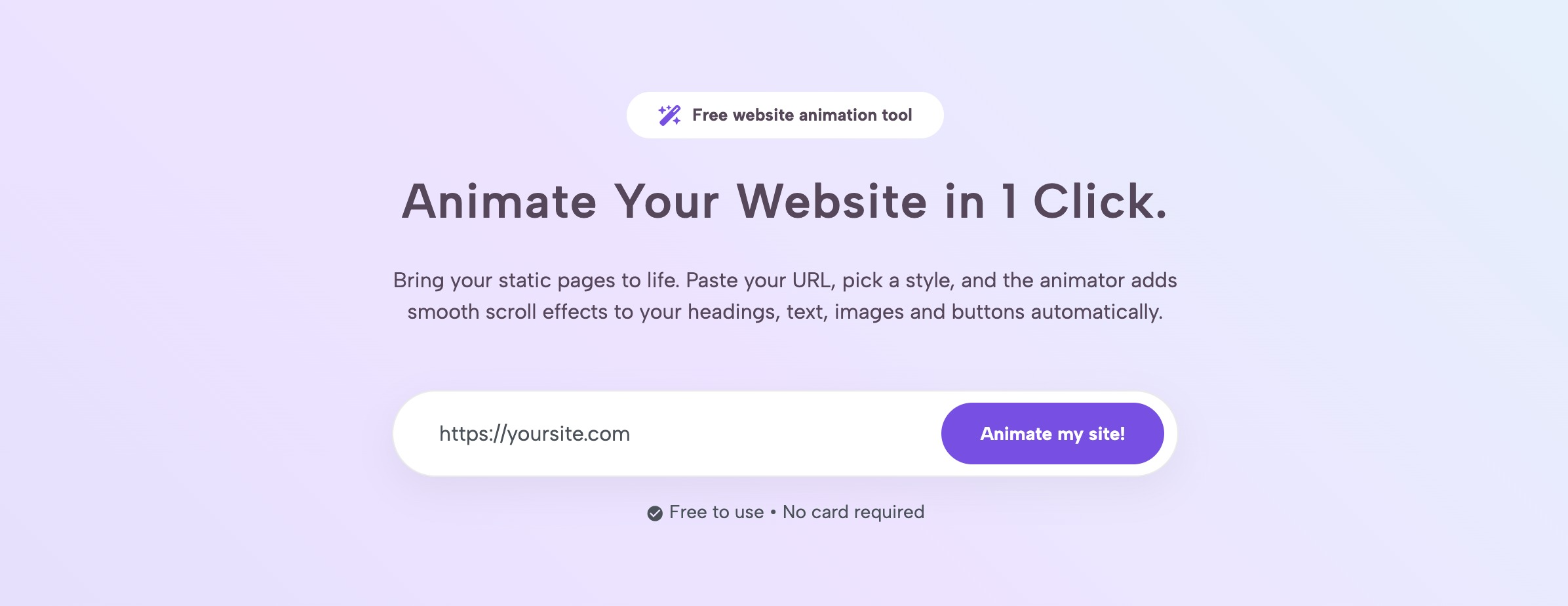
- 1. Load your site into the animator: Go to the animator page, enter your website's address, and click Animate my site!. You will need a free account to do this; if you aren't logged in, it will ask you to log in first.
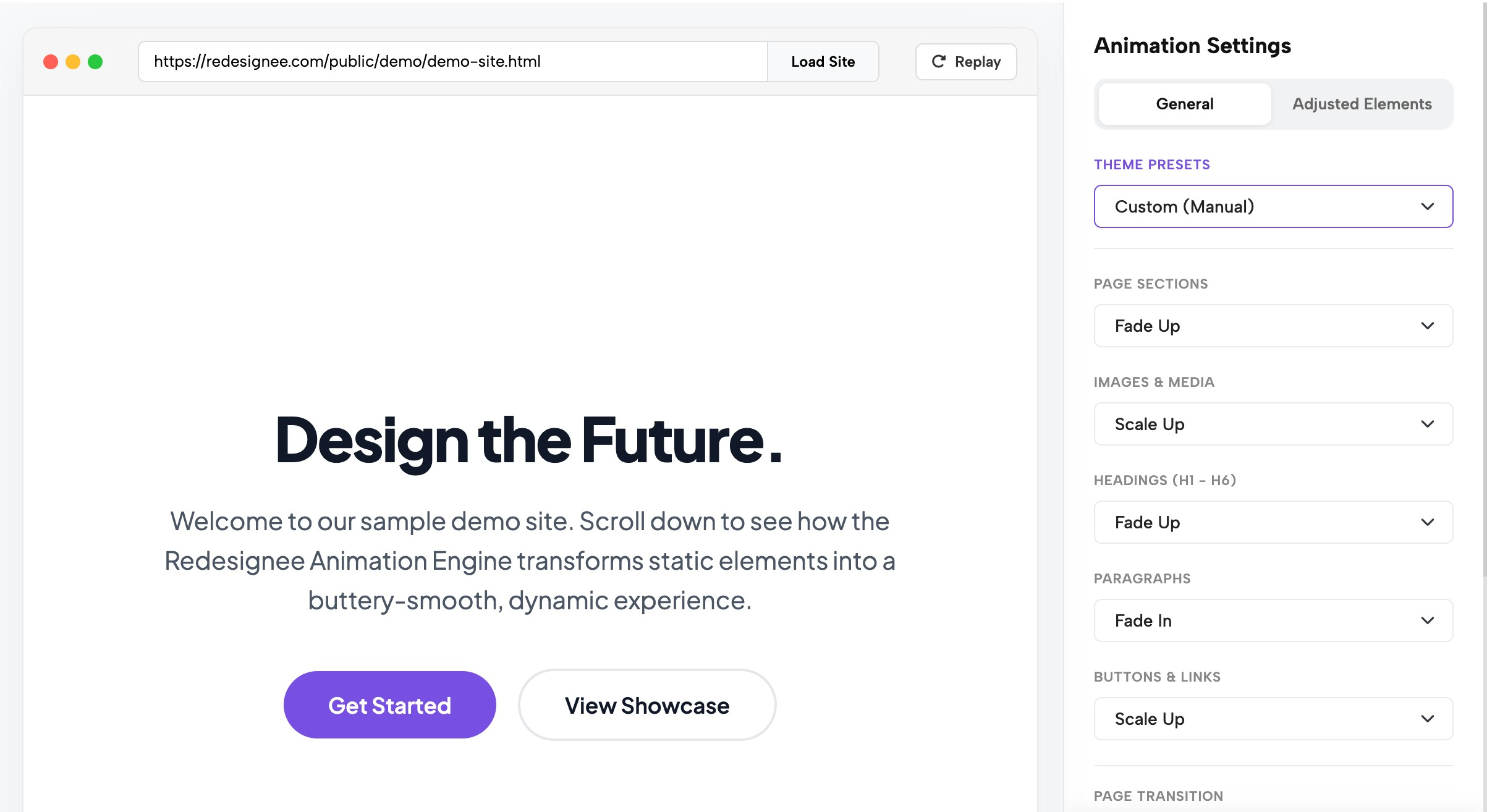
- 2. Choose your general settings: Your site will load in a live preview. On the right side, you will see the Animation Settings panel. You can select a Theme Preset (like Minimal & Clean, Dynamic Bounce, Editorial, or Cinematic) or manually assign a specific effect to each element group (like sections, images, headings, paragraphs, and buttons).
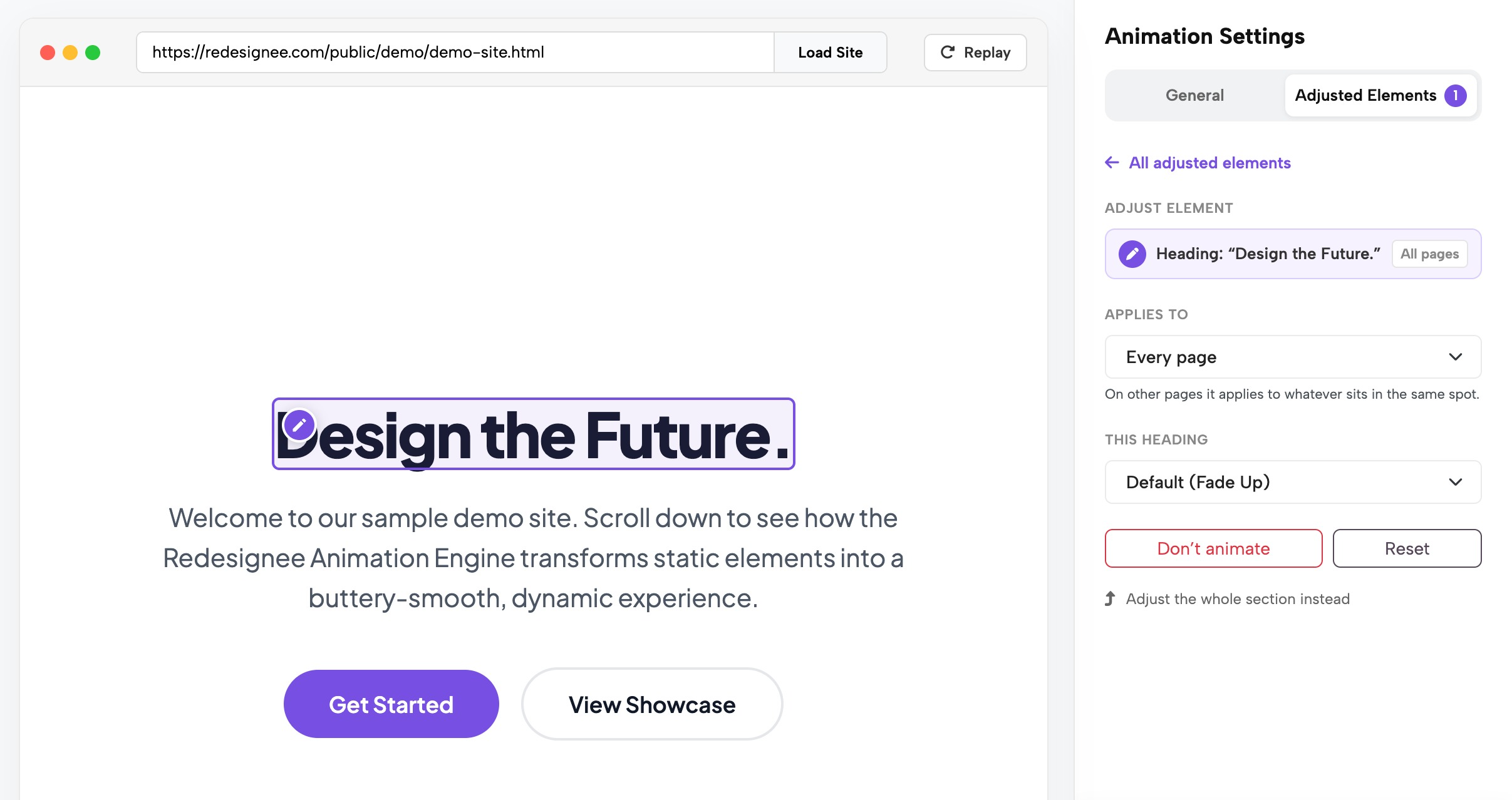
- 3. Adjust single elements: If there is a specific image or headline you want to behave differently, just hover over it in the live preview. Click the pencil icon that appears, and you can give it a unique effect or turn its animation off entirely.
- 4. Copy your script: Once you are happy with how everything looks, click Generate Script. You will get a small code snippet to copy.
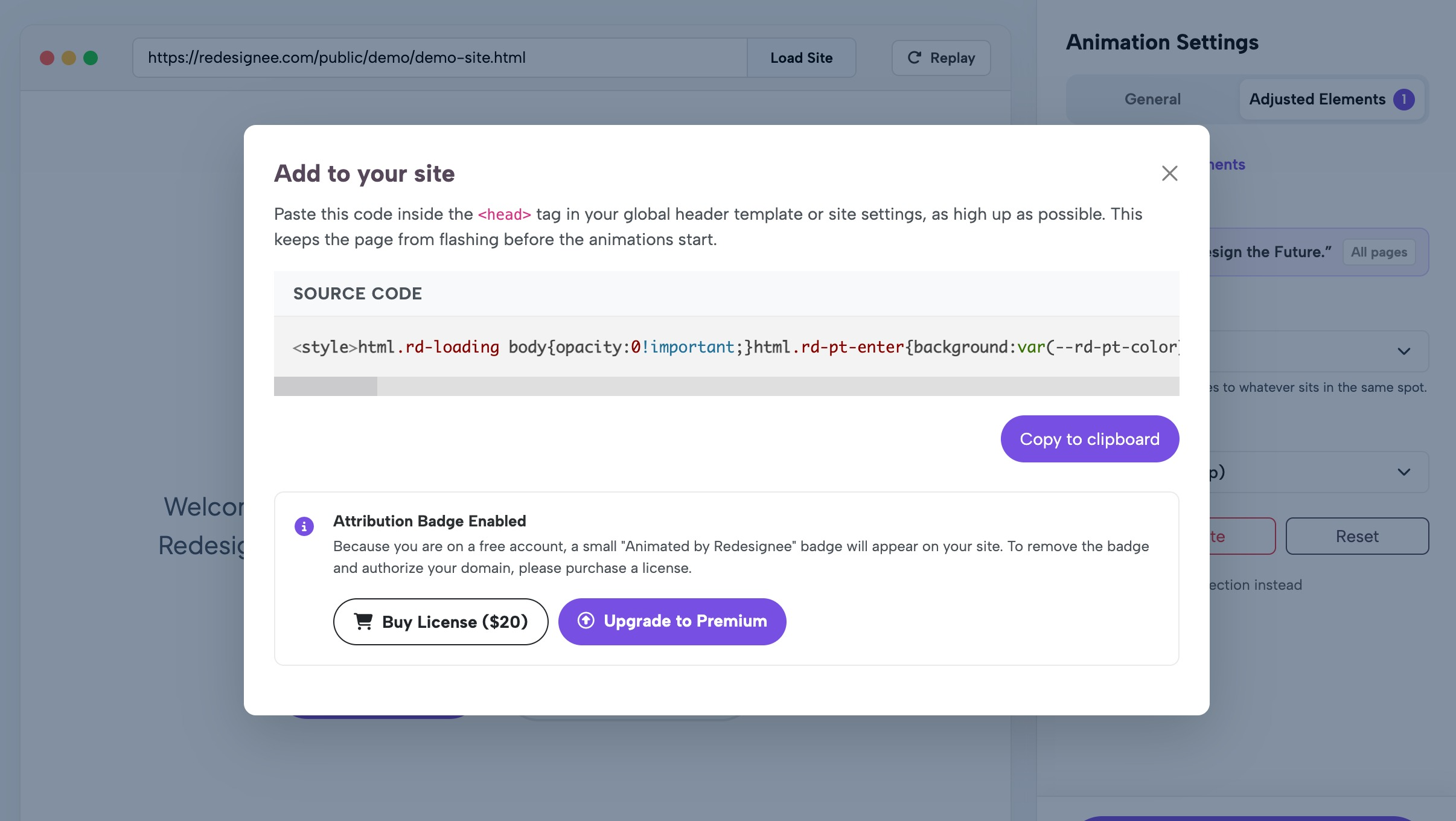
The generated script will look something like this example (though yours will be customized to your choices):
<style>html.rd-loading body{opacity:0!important;}</style> <script>window.rdAnimConfig={"sections":"fade-up","images":"scale-up","headings":"fade-up","paragraphs":"fade-in","buttons":"scale-up","stagger":true,"replay":false,"transition":"none","smoothScroll":true}; /* … */</script> <script src="https://redesignee.com/api/animator/engine?u=YOUR_ID" defer></script>
Where to paste the code in Squarespace
Now that you have your code snippet, you need to add it to the <head> of your Squarespace site. The <head> is the part of your site's code that loads first, before the visible content.
- Open your Squarespace dashboard.
- Navigate to Settings → Developer Tools → Code Injection.
- Find the Header box.
- Paste your Redesignee snippet at the very top of this box.
- Click Save.
Requirements: To use Code Injection, you must be on a Squarespace plan that allows custom code.
Gotchas to watch out for: Custom code like this does not run while you are inside the Squarespace page editor. To see your animations in action, you must view your live, published site, preferably in an incognito or private browsing window. Additionally, if you have Squarespace's native Site Styles animations turned on, turn them off! If both are active, your elements will awkwardly animate twice.
For more specific platform details, you can refer to the installation guide. If you are also looking for pre-built promotional banners and popovers, check out the Redesignee Squarespace extension.
Which effects to choose
Choosing the right effects depends entirely on the vibe of your brand. The easiest way to start is by clicking through the Theme Presets in the animator, but you can also mix and match individual effects. You can read more about every option in the effects and settings documentation.
- For corporate and small business sites: Keep it subtle. Use "Fade In" or "Fade Up" on paragraphs and images. This creates a smooth, gentle loading experience that doesn't distract from the information your customers need.
- For portfolios and creative sites: You can afford to be bolder. Try "Word Cascade" on your main H1 headings, "Curtain Reveal" for large portfolio images, and "Parallax Scroll" for media elements to create a highly dynamic experience.
You also have access to page-level options. You can turn on Smooth Scrolling for a soft, inertia-based mouse-wheel scroll. If you want elements that sit next to each other to appear sequentially rather than all at once, make sure Enable Staggering is on. You can even choose a Page Transition (like Curtain, Wipe, or Fade) that plays when a visitor clicks a link to navigate to another page on your same site.
Keep specific elements still
Sometimes you don't want everything to move. For example, you might want your main logo, a complex pricing table, or an important contact form to remain completely still as soon as the page loads.
To do this, use the animator's live preview. Click the pencil icon on the element you want to keep static to open the Adjust Element panel. Change the setting to None. This sets it so the element doesn't animate at all. If you ever change your mind, clicking Reset returns it to your general settings.
Note: if you have a specific button or image inside of a section that is already animating, the element will still move along with that section. To keep a specific area completely still, you need to adjust the whole section. You can learn more about adjusting single elements here.
Performance, accessibility and SEO
Adding motion to your site shouldn't break its fundamentals. The Redesignee animator is built to be responsible with your site's performance, accessibility, and search engine visibility.
- Performance: The animation engine is about 8 KB compressed. It is just one plain JavaScript file loaded with a defer attribute, meaning it doesn't block the rest of your page from loading. To prevent content from flashing awkwardly before the animation starts, the script hides the page briefly while preparing. As a failsafe, the page is always shown within 3 seconds, even if the user has a poor connection and the script cannot fully load. You can learn more about performance here.
- Accessibility: The animator automatically respects a visitor's prefers-reduced-motion operating system setting. Visitors who have requested less motion will only see short, simple fades. Heavy movements like page transitions, parallax, magnetic hover, and smooth scrolling are automatically turned off for them. Read more about accessibility here.
- SEO and Privacy: The animator finds elements dynamically by their HTML tags. Your actual written content stays directly in your Squarespace HTML, so search engines and AI crawlers can read it normally. Furthermore, the script uses no cookies, employs no tracking, and sends no visitor data anywhere.
Troubleshooting
If things aren't looking quite right after you paste the snippet, here are the most common fixes. You can find more detailed help in the troubleshooting guide.
- Nothing animates: Remember that custom code does not run inside the Squarespace editor. You must check your live, published site in an incognito window. Also, verify that your Squarespace plan actually allows custom code.
- Elements animate twice: Your Squarespace built-in animations are likely still on. Turn them off in your Site Styles to prevent them from conflicting with the animator script.
- Content flashes, then jumps: This usually means the snippet was pasted too low in your code, like in the footer. Ensure the script is pasted in the Header section of the Code Injection panel, as high up as possible.
- The Redesignee badge is still showing after buying: If you purchased a premium license, you must add your domain to your whitelisted domains in your account settings. After doing that, generate a new snippet and replace the old one on your site.
FAQ
How much does the animator cost?
The base animator is completely free, giving you access to all settings, the live preview, and the generated script. The free version places a small "Animated by Redesignee" badge on your site. If you want to remove the badge, a single-domain license is a $20 one-time fee. There are also Premium Starter ($49/year) and Premium Agency ($199/year) plans that remove the badge and include access to over 750 Redesignee widgets.
Will this slow down my Squarespace site?
The animation engine is highly optimized at just about 8 KB compressed and loads on a delay (defer) so it won't block your main content. As a safety measure, your site content is guaranteed to be shown within 3 seconds even on a failed or slow connection.
Does it work on mobile?
Yes. The animations are responsive and trigger based on the element scrolling into the viewport, which works across desktop, tablet, and mobile devices natively.
Can I remove it later?
Yes. Because the animator never actually edits your site's content or Squarespace templates, removing it is as easy as deleting the snippet from your Code Injection Header. Your site will instantly return to exactly how it was before.
Does it work with Squarespace's built-in animations?
No. If you leave Squarespace's native Site Styles animations turned on while using the Redesignee script, your elements will animate twice. You should turn off the native Squarespace animations before installing the snippet.
Ready to bring your site to life? Try it free at redesignee.com/animator.


Comments (0)